Part of the guide: Claude video editing: what works today and how to start
How to remove silence from a video (and cut pauses, retakes and filler words)
 Written by Jeff Pascal · Updated · 8 minute read
In short
- To remove silence from a video automatically, use CapCut desktop Auto Cut with speech pause detection, Clipchamp silence removal (free, pauses over 3 seconds) or ffmpeg silencedetect run by Claude Code.
- Silence detection finds pauses, not mistakes. Retakes and filler words need the transcript: CapCut transcript editing, filler word detection, or Whisper with Claude Code.
- Leave 0.1 to 0.2 seconds of air at a cut inside a sentence and 0.2 to 0.3 seconds between sentences, keep the last good version of each sentence, and watch the whole clip with sound before you post.
To remove silence from a video automatically, run a silence remover: CapCut desktop's Auto Cut with speech pause detection, Clipchamp's free silence removal, or ffmpeg's silencedetect filter, which Claude Code can run and cut for you. Then leave about 0.1 to 0.2 seconds of air at a cut inside a sentence, and 0.2 to 0.3 seconds between sentences, so the voice doesn't sound chopped, and watch the clip once with the sound on.
Silence removal catches pauses. It doesn't catch a sentence you said twice or an "um" in the middle of a phrase. For those you cut from the transcript, which is covered further down.
Pick a method
| Method | Finds | Cost | Control |
|---|---|---|---|
| CapCut desktop Auto Cut | Speech pauses | Free download | Settings in the Auto Cut panel; check the timeline after |
| Clipchamp silence removal | Pauses over 3 seconds | Free for all users | Review each pause: ignore, remove or remove all |
ffmpeg silencedetect with Claude Code |
Any pause you define (length and loudness) | ffmpeg free; Claude Code needs a paid plan | Full: you set the threshold, see the list, approve the cut |
| Transcript editing (CapCut, Whisper) | Retakes, filler words, stumbles | Free tools | You choose word by word |
| By hand on a timeline | Anything | Free | The most precise and the slowest |
Before you start
- Your footage on the computer, in its own folder, with a copy of the original somewhere else.
- For CapCut: CapCut desktop, a free download for Windows and macOS. Setup help is in CapCut for PC.
- For the ffmpeg route: ffmpeg (free) and Claude Code, which needs a paid Claude plan (Pro is the entry paid plan that includes it; check current pricing on claude.com/pricing, verified on 18 November 2026) and macOS 13 or later or Windows 10 (1809) or later.
- For retakes: Whisper, free transcription that needs Python and ffmpeg.
Remove silence in CapCut
CapCut's Auto Cut help page describes the desktop steps:
- Put the clip on the timeline.
- Click the "AI" button in the top toolbar, or go to Edit, then AI Tools, then Auto Cut.
- Choose speech pause detection. (The other modes sync cuts to music beats or a text prompt.)
- Click "Apply" or "Generate". The timeline shows the clip split, with the pauses gone.
- Play it through and put back anything it cut that you wanted.
Auto Cut is on the desktop and mobile apps, not on CapCut Web. Menu names shift between versions; if you don't see the "AI" button, look for Auto Cut in the Edit menu.
Remove silence in Clipchamp
Microsoft's silence removal help page says it's free for all Clipchamp users and flags pauses longer than 3 seconds:
- Click the AI suggestions button (the sparkle icon) on the timeline, then auto cut.
- Pick the transcription language and click transcribe.
- Review the highlighted pauses. Preview each one, ignore the ones that should stay, remove one, or remove all.
- Export.
The 3-second floor means Clipchamp catches long gaps, not the half-second hesitations that make talking clips feel slow. For those, use one of the other methods.
Remove silence with ffmpeg and Claude Code
ffmpeg's silencedetect filter lists every stretch quieter than a threshold for longer than a minimum time. Claude Code runs it, reads the list and cuts.
- Start Claude Code in the clip's folder. Type
claude --permission-mode manualto approve each command; without the option, recent versions start in auto mode, where a second model checks the actions instead of you. - Ask for the list: "Find the pauses longer than half a second in interview.mp4 with silencedetect." The command looks like
ffmpeg -i interview.mp4 -af silencedetect=noise=-30dB:d=0.5 -f null -. You getsilence_startandsilence_endlines with the seconds. - Ask for the cut: "Cut those pauses, leave 0.15 seconds of air at each cut, and write a new file. Don't overwrite the original." You get
interview-cut.mp4. - Watch it (checklist at the end).
Starting settings to adjust on your own footage:
- Threshold (
noise). The default is -60 dB. A quiet room might work at -30 dB; a noisier one needs a value closer to 0, like -25 dB. Try two or three values and keep the one that doesn't eat your breathing. - Minimum pause (
d). The default is 2 seconds, too long for speech. Start at half a second. - Air at each cut. 0.1 to 0.2 seconds inside a sentence, 0.2 to 0.3 seconds between sentences.
On footage with street noise, the noise can read as speech and the pauses stay in. Clean the audio first; see how to clean up audio in a video.
Cut retakes and mistakes with Claude Code
When you film alone you say a sentence two or three times. Silence detection can't see that. A transcript can: the same sentence shows up twice, each with its time.
- Transcribe with word times: "Transcribe interview.mp4 with Whisper, with a time for every word." The command looks like
whisper interview.mp4 --word_timestamps True --output_format json. Whisper marks word timing as experimental, and accuracy varies by language, so read the text. - Find the pauses as in the section above.
- Send a four-line request:
- What the clip is: "interview.mp4, 50 seconds, I explain what to check in a quote."
- What goes: "Remove stumbles, false starts and pauses over half a second."
- What stays: "If I said a sentence several times, keep the last version. Keep the pause after the question."
- What it's for: "A vertical Instagram reel."
- Read the plan before the cut. Claude Code answers with the pieces it will keep, with start and end seconds and the words in each. Look for the sentence you want and the retake that should go. A plan is easier to fix than a clip.
- Approve the cut and ask for a new file.
Vague requests get vague cuts:
| Request | What can happen |
|---|---|
| "Cut what's bad." | Claude guesses what's bad and may remove a part you wanted. |
| "Cut the pauses." | Pauses go, retakes stay. |
| "Cut mistakes, retakes and pauses; keep the last version of repeats; leave air after the question." | Much closer, with a clear rule for retakes. |
Say what must stay, too: "Keep everything about delivery times." "Keep the laugh at the start." If the last take isn't the best one, say which: "Keep the second version of the intro." And write your product or company name in the request so the transcript doesn't garble it.
Claude Code can't see a glance away or a hand entering the frame. Those aren't in the sound or the text, so give it the second.
When something's off, fix it with words, one place at a time: "At 0:14 you cut off part of 'but'. Keep the whole word." More fix prompts are in video editing prompts for Claude.
Getting Claude to cut cleanly usually takes a few rounds of refining your prompts. Whenever you hit a snag, bring it to Team of One, the free WhatsApp community where I hang out with readers learning to amplify themselves with AI.
Remove filler words and retakes in CapCut
CapCut has two transcript tools:
- Transcript-based editing. Right-click the clip on the timeline and choose "Transcript-based editing" (CapCut's page). Delete words from the text in the left panel and the matching video goes too. Fast for retakes, because you see everything you said.
- Filler word detection. Open "Captions", choose "Auto captions", pick the language, switch on filler word detection and click "Generate" (CapCut's page). Fillers like "um", "uh" and "you know" are highlighted, and you delete them or keep them.
A wrong word in the transcript means a cut in the wrong place. If the text doesn't match what you said, listen before you delete. Why transcripts go wrong is in how to add captions to a video.
Cut pauses by hand
Works in any timeline editor:
- Zoom into the timeline until you see the sound wave. Pauses look like flat stretches.
- Split at the start of the pause and again at the end.
- Delete the middle piece with the option that closes the gap (often called ripple delete), so no black hole is left.
- Repeat.
Cut picture and sound together, or they drift out of sync. Cut in the silence before a word, not on its first consonant. For a one-minute clip with ten pauses, expect about twenty cuts. If you want the theory, see what is a jump cut.
What to keep so it doesn't sound chopped
- A breath before the key idea. A quarter second says "this matters".
- Air between sentences, about 0.2 to 0.3 seconds; less between words.
- Your own pace. Don't squeeze a calm speaker into ad-speed delivery. People hear it.
- A slight zoom at some cuts hides the head jump; see the punch-in zoom effect.
Filming helps too: when you trip, stay silent for a second and restart the whole sentence. The pause marks the mistake for both you and the software.
If it doesn't work
- The sound no longer matches the lips. You cut only picture or only sound. Undo and cut both at the same point.
- Auto detection finds no pauses. The threshold is too strict for your room noise. Raise it (from -30 dB to -25 dB) and list again.
command not found: claude. The install folder isn't on your PATH yet. Open a new terminal window, then see the install troubleshooting page.- The Whisper install stops with
No module named 'setuptools_rust'. Whisper's page says to installsetuptools-rustfirst, then retry.
Final check
- Watch the whole clip with sound, once, without stopping to fix.
- Note every jump, click or half word, with its time.
- Check you kept the good version of each sentence.
- Watch it again on your phone at real size.
- Make sure it doesn't open with a second of silence.
If you'd like Claude to cut the pauses while you only check the result, CreaThor EDIT is the video editing course I run with Mihai Repede (taught in Romanian). You edit your own clips with Claude on your laptop: the kit cuts the mistakes, retakes and pauses from the raw footage, and you check the cut. You need a paid Claude plan.
The rest of the edit is in the Claude video editing guide.
Questions
How do I remove silence from a video automatically for free?
CapCut desktop is free and has Auto Cut with speech pause detection. Clipchamp's silence removal is free for all users but only flags pauses longer than 3 seconds. ffmpeg is free too; its silencedetect filter lists every pause and Claude Code can cut them for you.
How do I remove silence in CapCut?
On desktop, click the "AI" button in the top toolbar or go to Edit, AI Tools, Auto Cut, choose speech pause detection and click "Apply" or "Generate". CapCut's help page says Auto Cut is on mobile and desktop, not on CapCut Web.
How do I remove filler words like "um" and "uh"?
In CapCut desktop, generate auto captions with filler word detection switched on; the fillers are highlighted and you delete them. Descript and Premiere Pro also detect filler words. With Claude Code, a Whisper transcript shows them with their times.
Why does my video sound choppy after removing silence?
The cuts are too tight. Leave 0.1 to 0.2 seconds of air before and after each piece, keep a short breath before important ideas, and do not cut on the first sound of a word.
Can a silence remover cut my retakes too?
No. It only measures how loud the sound is, so a sentence said twice looks like two good sentences. Retakes need the transcript, where the repeat shows up as the same words twice.
Sources
- capcut.com: CapCut Auto Cut: speech pause detection, beat sync; on desktop the "AI" button or Edit, AI Tools, Auto Cut, then "Apply" or "Generate"; available on mobile and desktop, not on CapCut Web, checked 18 November 2026
- capcut.com: CapCut: "Transcript-based editing" from the right-click menu on the clip; edit the transcript in the left panel, checked 18 November 2026
- capcut.com: CapCut: filler words found through "Captions", "Auto captions", the language, the filler word detection switch, then "Generate"; delete the highlighted fillers, checked 18 November 2026
- capcut.com: CapCut desktop: free download, for Windows and macOS, checked 18 November 2026
- support.microsoft.com: Clipchamp silence removal: pauses longer than 3 seconds; AI suggestions, auto cut, transcribe; ignore, remove or remove all; free for all Clipchamp users, checked 18 November 2026
- ffmpeg.org: ffmpeg silencedetect filter: noise tolerance (default -60 dB) and minimum silence duration (default 2 seconds), checked 18 November 2026
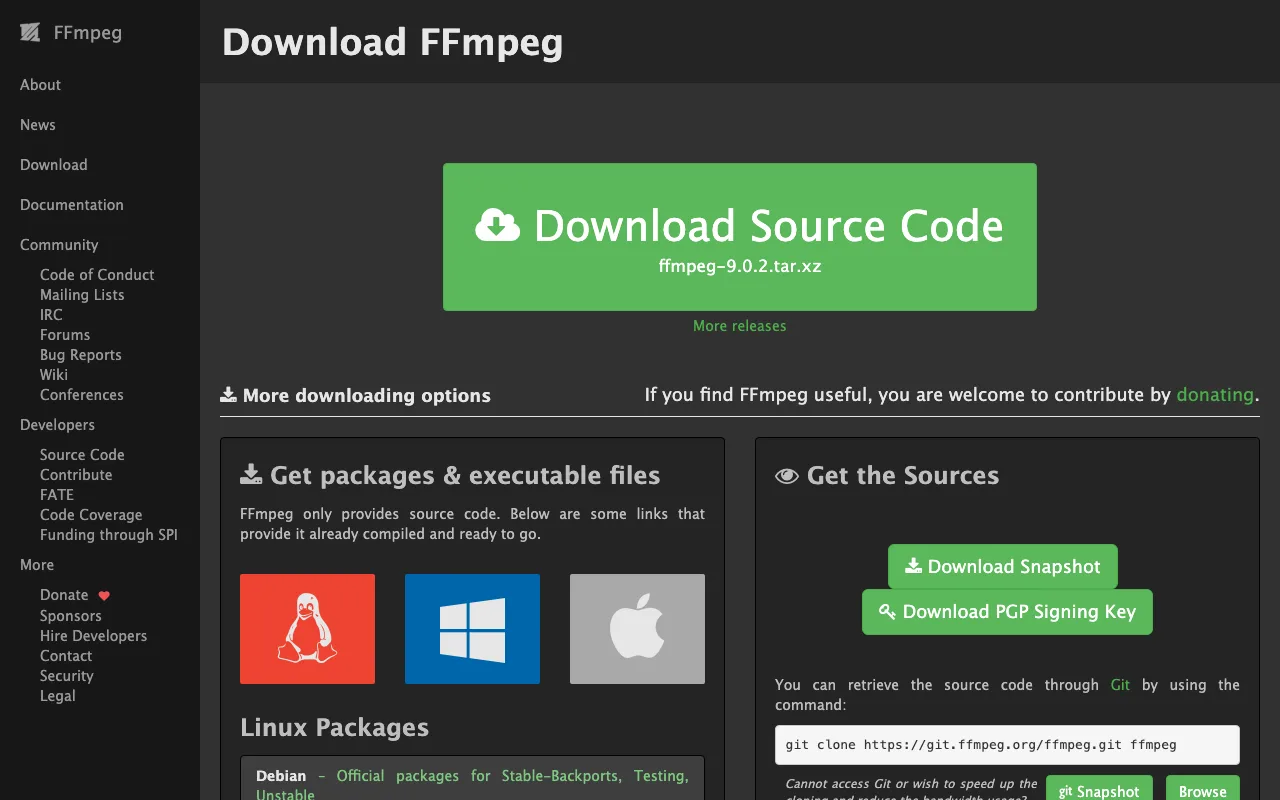
- ffmpeg.org: ffmpeg: download page, checked 17 November 2026
- github.com/openai: Whisper: free transcription, needs Python and ffmpeg; results vary widely by language; the --word_timestamps option (experimental), checked 17 November 2026
- code.claude.com: Claude Code: system requirements (macOS 13+, Windows 10 1809+, 4 GB RAM), install; the free plan does not include Claude Code, checked 17 November 2026
- code.claude.com: The "command not found: claude" error: the install folder is not on your PATH, checked 17 November 2026
- code.claude.com: Permission modes: since version 2.1.283 a terminal session starts in auto mode (a second model checks the actions); with claude --permission-mode manual (alias of default) stops before most actions that edit files, run shell commands or reach the network, checked 17 November 2026
- claude.com: Pro plan: paid Claude plan; includes Claude Code, checked 18 November 2026
- descript.com: Descript pricing: "Remove Filler Words", checked 18 November 2026
- adobe.com: Premiere Pro: Text-Based Editing with filler-word detection, checked 18 November 2026
Free WhatsApp communities · Jeff x CreaThor
Editing video with AI? Ask in the community.
In “Team of One” I share what I test on real work with AI (mostly in Romanian, ask in English any time). For video workflows, filming and short-form clips, join the Creathor Academy 2026 community (Jeff x CreaThor).