Part of the guide: What is Claude Code? What it does, what it costs, and how to start
How to install Claude Code on Windows 10 and 11 (PowerShell, no WSL needed)
 Written by Jeff Pascal · Updated (Windows 10 1809+ and 11, Claude Code 2.1) · 5 minute read
In short
- Open PowerShell and paste
irm https://claude.ai/install.ps1 | iex. Then open a new window and runclaude --version: a version number means it worked. - Claude Code runs natively on Windows: WSL is optional and you do not need Administrator rights. Git for Windows is recommended so Claude can use Git Bash; without it, Claude uses PowerShell.
- You need Windows 10 version 1809 or newer (64-bit), 4 GB of RAM and a paid Claude plan (Pro is the cheapest plan that includes it; see claude.com/pricing, checked 18 November 2026).
To install Claude Code on Windows 10 or 11, open PowerShell and paste:
irm https://claude.ai/install.ps1 | iexWhen it finishes, open a new PowerShell window and type claude --version. A version number means Claude Code is installed. You do not need WSL or Administrator rights. Anthropic recommends installing Git for Windows first, but it is optional, and you need a paid Claude plan to use the program.
Checked on 18 November 2026 against Anthropic's setup page and terminal guide. New to Claude Code? Read what is Claude Code first.
Requirements
| What | Details |
|---|---|
| Windows | Windows 10 version 1809 or newer, Windows 11, or Windows Server 2019+ |
| Processor | 64-bit, x64 or ARM64. 32-bit Windows is not supported |
| Memory | 4 GB of RAM or more |
| Internet | Needed to install and to work |
| Account | Pro, Max, Ultra, Team or Enterprise plan, or a Console account. The free plan does not include Claude Code |
| Rights | No Administrator needed |
| Time | 10 to 15 minutes with Git for Windows |
Microsoft ended support for Windows 10 on 14 October 2025. Claude Code still lists it as supported, but on a new computer choose Windows 11.
Native Windows or WSL?
| Option | When to use it |
|---|---|
| Native Windows (this guide) | Your projects and tools are normal Windows ones. Nothing else to enable |
| WSL 2 | Your projects use Linux tools, or you want Claude's commands to run in a sandbox (not supported on native Windows) |
For WSL, open your Linux distribution and run the Mac/Linux command, curl -fsSL https://claude.ai/install.sh | bash, inside it. You then start claude from the WSL terminal, not from PowerShell.
Prefer no terminal at all? The Claude desktop app for Windows (x64 and ARM64) includes Claude Code in its Code tab. See desktop vs CLI.
Step 1: choose a plan
Open claude.com/pricing. Pro is the cheapest plan with Claude Code, billed monthly or yearly at a lower rate before tax (checked on 18 November 2026). Sign up with Try Claude. Which plan fits your use: how much Claude costs.
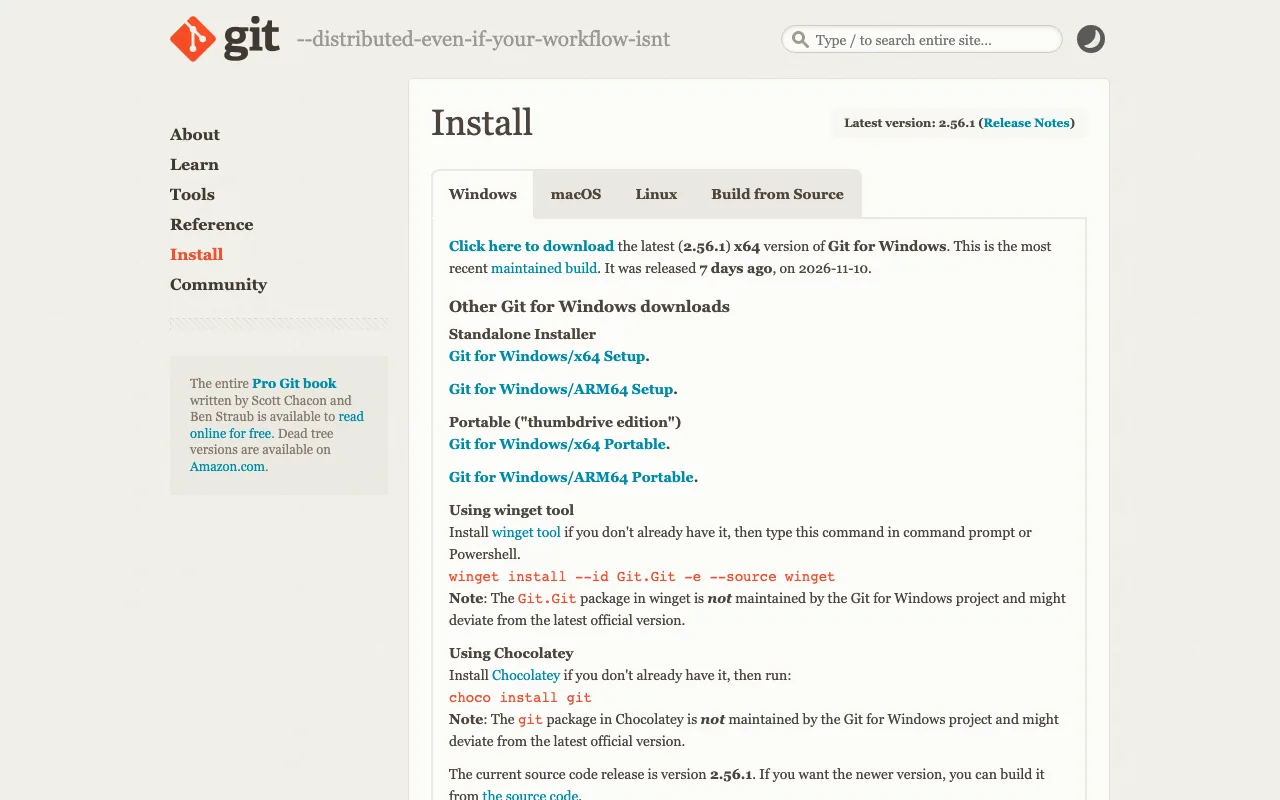
Step 2: install Git for Windows (recommended)
Git for Windows gives Claude Code the Git Bash shell for its commands. Without it, Claude Code uses PowerShell, so it works either way. You do not need to learn Git. Already have Git? Skip to step 3.
- Open git-scm.com/downloads/win and click "Click here to download".
- Run the installer and keep the default options on every screen.
Step 3: open PowerShell
Press Win + X and choose Windows PowerShell or Terminal. Each line starts with PS C:\Users\YourName>. The PS tells you it is PowerShell. If the line starts with just C:\, you are in CMD, which needs a different command (below).
Step 4: run the install command
Paste with Ctrl + V or a right-click, then press Enter:
irm https://claude.ai/install.ps1 | iexThe installer shows no progress while it downloads. Leave the window open until you see "Claude Code successfully installed!".
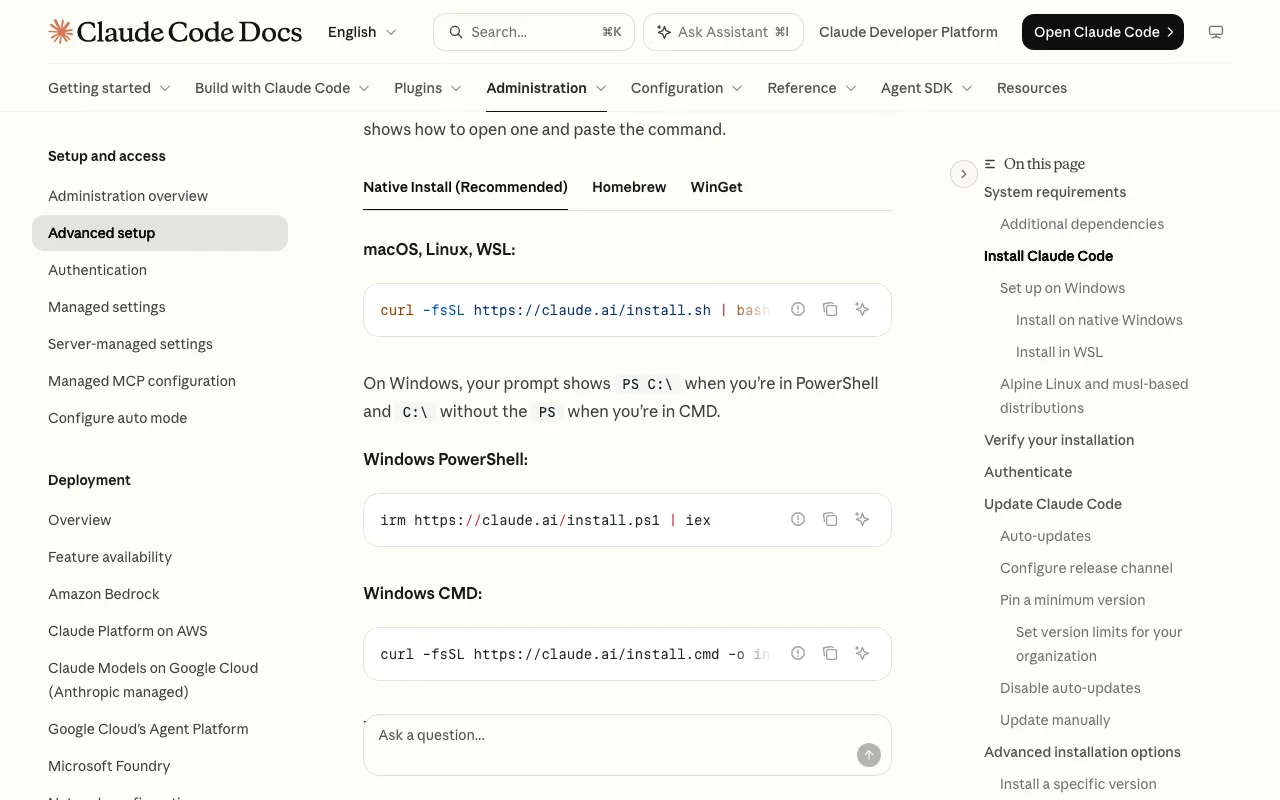
In CMD instead of PowerShell:
curl -fsSL https://claude.ai/install.cmd -o install.cmd && install.cmd && del install.cmdWith WinGet: winget install Anthropic.ClaudeCode. WinGet installs do not update themselves; run winget upgrade Anthropic.ClaudeCode from time to time. The native install from the PowerShell or CMD command updates itself in the background.
Step 5: check the install
Close the window, open a new PowerShell window and type:
claude --versionYou see a version number followed by (Claude Code). For a full report of the install and settings, run claude doctor; it only reads and prints.
Step 6: start Claude Code and sign in
Go to a folder you want to work in (cd Documents\my-project) and type claude. Your browser opens to sign in; use the account with the paid plan. You stay signed in after that. Inside Claude Code, Esc stops what Claude is doing and /exit closes it. What to do next: Claude Code tutorial for beginners.
Windows errors and fixes
These are the messages listed on the official troubleshooting page.
| You see | What it means | Fix |
|---|---|---|
'irm' is not recognized |
You are in CMD | Open PowerShell (Win + X), or use the CMD command |
The token '&&' is not a valid statement separator |
You pasted the CMD command into PowerShell | Use the PowerShell command |
A parameter cannot be found that matches parameter name 'fsSL' |
You pasted the Mac/Linux command into PowerShell | Use the PowerShell command |
'claude' is not recognized |
The install folder is not on your PATH yet | Open a new window; if it stays, see below |
Could not create SSL/TLS secure channel |
Older PowerShell without TLS 1.2 | Run the TLS line below, then install again |
Claude Code does not support 32-bit Windows |
You opened "Windows PowerShell (x86)" | Open the Start menu entry without "(x86)" |
Fix for 'claude' is not recognized. Run these two lines in PowerShell, then open a new window:
$currentPath = [Environment]::GetEnvironmentVariable('PATH', 'User')
[Environment]::SetEnvironmentVariable('PATH', "$currentPath;$env:USERPROFILE\.local\bin", 'User')
Fix for the SSL/TLS message (Windows PowerShell 5.1):
[Net.ServicePointManager]::SecurityProtocol = [Net.SecurityProtocolType]::Tls12Any other message: look it up in the Find your error table. Problems after the install (sign-in, limits, hangs): Claude Code not working.
Still stuck after checking those fixes? Ask inside Team of One, a WhatsApp community I host where we figure out AI tools together.
Updating and uninstalling
- Native install: updates in the background; run
claude updateto update now. - WinGet:
winget upgrade Anthropic.ClaudeCode; uninstall withwinget uninstall Anthropic.ClaudeCode. - Uninstall the native install (PowerShell):
Remove-Item -Path "$env:USERPROFILE\.local\bin\claude.exe" -Force, thenRemove-Item -Path "$env:USERPROFILE\.local\share\claude" -Recurse -Force.
How you know it worked
claude --versionprints a version number in a new PowerShell window.claudestarts, you are signed in, and it answers "what files are in this folder?".
Next, set up a CLAUDE.md file with the rules you want Claude to follow in every session.
Questions
Do I need WSL to run Claude Code on Windows?
No. Claude Code runs natively on Windows from PowerShell or CMD. WSL 2 is an option if your projects use Linux tools or you want sandboxed command execution, which native Windows does not support.
Do I need Administrator rights?
No. The official setup page says you do not need to run the install as Administrator on native Windows.
Do I need Git for Windows?
It is optional but recommended. With it, Claude Code uses Git Bash for shell commands; without it, Claude Code uses PowerShell instead. WSL setups do not need it.
Do I need Node.js?
No. The native installer and WinGet do not need Node.js. Only the npm install does, and it needs Node.js 22 or later.
Does it still work on Windows 10?
Yes, on Windows 10 version 1809 or newer. Note that Microsoft stopped supporting Windows 10 on 14 October 2025, so plan to move to Windows 11.
Sources
- code.claude.com: native Windows or WSL; PowerShell, CMD and WinGet commands; no Administrator rights; the PS C:\ prompt; Git for Windows optional, provides Git Bash; without it the PowerShell tool; Windows 10 1809+; 4 GB RAM; x64 or ARM64; auto-updates on native installs; WinGet does not auto-update; uninstall commands; account types, checked 18 November 2026
- code.claude.com: Win + X → Windows PowerShell; the installer shows no progress; the "Claude Code successfully installed!" message, checked 18 November 2026
- code.claude.com: Windows errors: irm is not recognized, the token && is not a valid statement separator, parameter fsSL, claude is not recognized and the User PATH fix, SSL/TLS secure channel and the TLS 1.2 line, 32-bit Windows and the (x86) PowerShell entry, file in use by another process, checked 18 November 2026
- git-scm.com: the Git for Windows download, checked 18 November 2026
- microsoft.com: Microsoft ended support for Windows 10 on 14 October 2025, checked 17 November 2026
- claude.com: Claude plans and prices: Pro monthly and annual billing, checked 18 November 2026
- code.claude.com: the Desktop app: Windows x64 and ARM64 installers; Claude Code in the Code tab, checked 18 November 2026
Free WhatsApp community
Learning AI? Learn it on real work.
In “Team of one” I post what I actually tried on my own work. Most of it is in Romanian, but ask in English any time and we will work it out together.
Join the community